 ConvertFlow
Best Video Converters With No Subscription in 2026
Quick answer
You can avoid subscriptions three ways: use a free open-source tool like HandBrake, pay once for an app like ConvertFlow ($1.99), or buy online credits that do not renew. Before paying for any “lifetime” converter, check updates, number of computers, watermarks, refund window and whether files are uploaded.
In this guide
- The three ways to convert video without a subscription
- Free and open source: HandBrake, Shutter Encoder, FFmpeg and VLC
- One-time purchase: ConvertFlow
- Online converters with credits
- 7 questions to ask before buying a “lifetime” converter
- How ConvertFlow answers those seven questions
- What does a subscription actually cost over time?
- What should a paid converter include?
- Frequently asked questions
Converting a video file is a small, finished job. You have a file in one format and you want it in another. Yet plenty of converter apps ask for a monthly or yearly subscription, which is hard to justify for something you might use a few times a month.
The good news is that you do not need to rent a converter. There are solid options that cost nothing, or cost one small payment. This guide explains the choices and the fine print to check before you pay.
Disclosure: We make ConvertFlow, so it is listed first. We have tried to be fair, and every tool below includes a note on who should pick something else.
The three ways to convert video without a subscription
| Model | Examples | Cost | Catch |
|---|---|---|---|
| Free and open source | HandBrake, Shutter Encoder, FFmpeg, VLC | Free | Interfaces can be technical, and you handle downloads and safety yourself |
| One-time purchase | ConvertFlow | $1.99 once | Windows, macOS and Linux; check what the license includes |
| Online with free allowance or credits | CloudConvert | Free tier, then paid credits or plans | Your file is uploaded, and free tiers have limits |
Free and open source: HandBrake, Shutter Encoder, FFmpeg and VLC
If price is the only thing that matters, free tools are excellent. HandBrake is free and open source, runs on Windows, macOS and Linux, and has presets for common jobs. Shutter Encoder is also free and adds a lot of editor-focused features. FFmpeg is a free command-line tool, and VLC can convert files from its Media menu.
The trade-off is time and attention. You have to find the official download, learn the settings, and decide which options matter. We compare all of them in our guide to the best video converters for Windows.
One-time purchase: ConvertFlow
ConvertFlow is a desktop app for Windows, Mac and Linux that costs $1.99 once. There is no subscription, no renewal and no credit system. It converts video, audio and images on your own computer, so files are never uploaded, and it works offline once activated.
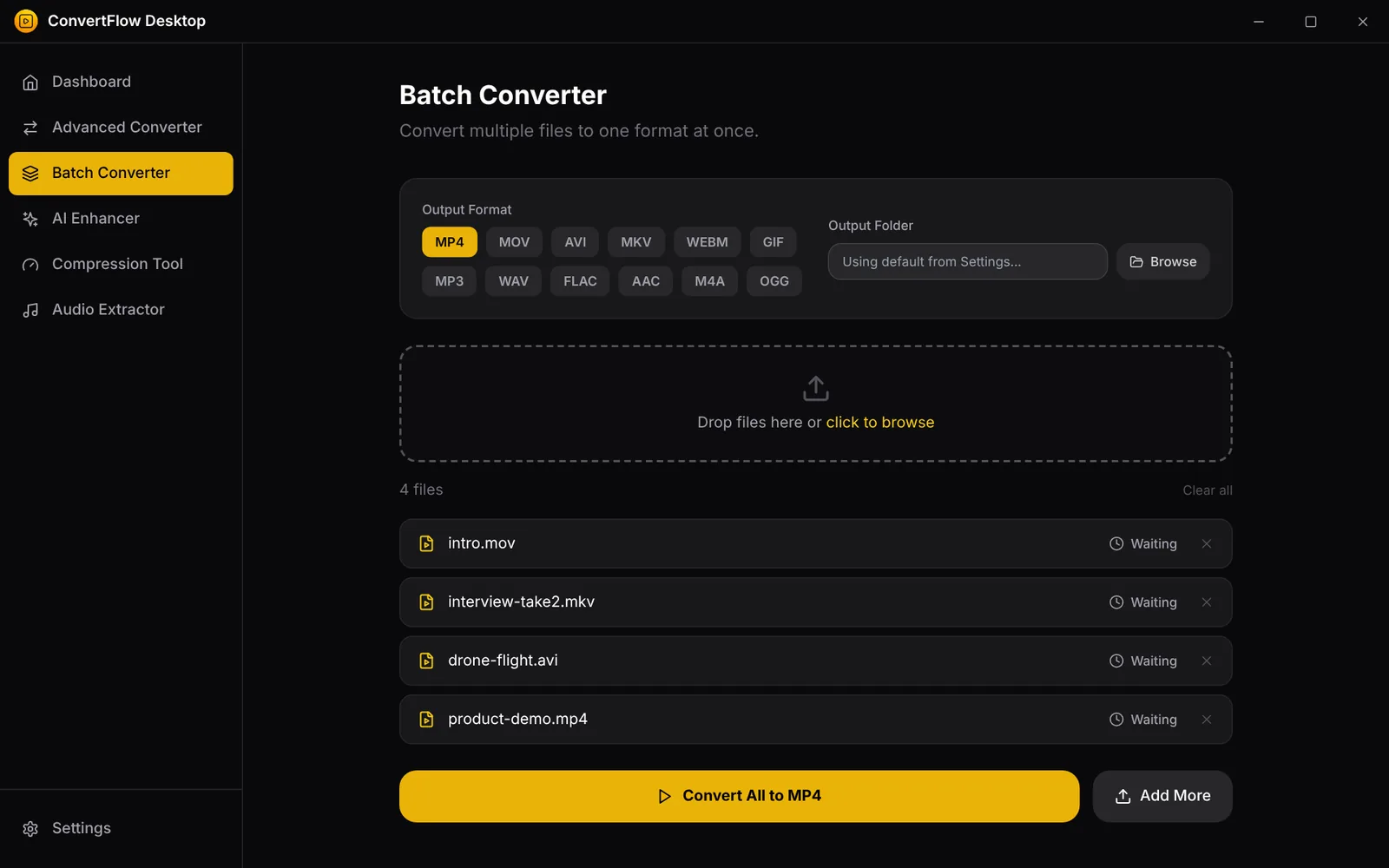
What you get for that single payment:
- Unlimited conversions with no file size limits
- Video, audio and image conversion, plus batch, compression, audio extraction and an enhancer
- Use on up to 3 of your own computers
- Free updates for the current version
- A 14-day money-back guarantee
Fairly, it is not for everyone. It needs Windows 10 or 11, an Apple Silicon Mac or 64-bit Linux, and if you are happy with a free tool, you do not need it. The value is a simple interface and a bundle of tools in one place for the price of a coffee.
Online converters with credits
Some online converters sell prepaid credits instead of subscriptions, so you pay for what you use and the credits do not renew. CloudConvert, for example, has a free daily allowance and paid options beyond it. Check its pricing page for current numbers.
This model suits rare conversions. For regular video work, uploading large files every time gets slow, and your footage leaves your computer. Our guides to free online file converters and online converter safety cover the details.
7 questions to ask before buying a “lifetime” converter
A one-time price sounds simple, but the terms differ a lot between products. Before you pay, find the answers to these:
- Are updates included, and for how long? Some licenses cover only the current version.
- How many computers can you use it on? One, three, or unlimited.
- Does it add watermarks or time limits? Some free or trial versions mark the output.
- What is the refund policy? Look for a clear window and a real contact address.
- Does it work offline? Some apps need a constant connection.
- Are your files uploaded? Local apps process files on your computer. Online tools do not.
- Is there a real company behind it? Look for a support email, a privacy policy and sales terms.
How ConvertFlow answers those seven questions
- Updates: free updates for the current version.
- Computers: one key works on up to 3 of your computers.
- Watermarks: none, and there are no credits or time limits.
- Refunds: 14 days, in full. See the refund policy.
- Offline: yes, after activation. It only checks your license when you are online.
- Uploads: none. Everything is converted on your computer.
- Contact: support@convertflow.cc, with a privacy policy and terms on the site.
If you want to see how it feels before buying, the free browser converter handles images and audio with no sign-up. The full app adds video and everything else for $1.99.
Convert, compress and extract audio on your own computer
ConvertFlow runs locally with no upload limits. $1.99 once, no subscription, and a 14-day money-back guarantee.
What does a subscription actually cost over time?
Prices vary a lot between products, so here is an illustration with made-up round numbers. These are not the prices of any specific product.
| Option | Year 1 | Over 3 years |
|---|---|---|
| Free tool such as HandBrake | $0 | $0, but you spend more time learning it |
| One-time purchase like ConvertFlow | $1.99 | $1.99 |
| Hypothetical subscription at $30 a year | $30 | $90 |
| Hypothetical subscription at $5 a month | $60 | $180 |
The point is not that subscriptions are always bad. Some bundle editing suites and cloud storage that you may use daily. But if you only need to convert and compress files, you are paying every month for a job that has an end.
What should a paid converter include?
If you do pay, make sure the money buys something a free tool does not. Useful extras include:
- Batch conversion, so a folder takes one click instead of twenty.
- Compression with a size preview, so you can hit an upload limit without trial and error.
- Audio extraction in common formats such as MP3, WAV and FLAC.
- Hardware acceleration, which uses your graphics card to speed up encoding when it is available.
- A simple interface, because time is the real cost of a free tool you struggle with.
ConvertFlow covers all five for $1.99. If you only need one quick conversion, the free tools above are still a perfectly good choice.
Frequently asked questions
Is there a video converter with no watermark and no subscription?
Yes. HandBrake, Shutter Encoder, FFmpeg and VLC are all free and do not watermark output. ConvertFlow is a one-time $1.99 purchase with no watermark either.
Are one-time converters worth paying for?
It depends on what you value. If you are comfortable with free tools, you may not need to pay. If you want one simple app for video, audio and images with batch and compression built in, a small one-time price can be worth it.
What does “lifetime license” actually mean?
It varies by company. It may mean updates forever, updates for one major version, or simply that you can keep using the version you bought. Read the terms. ConvertFlow’s pricing page states that updates for the current version are free.
Does ConvertFlow have a subscription or renewals?
No. ConvertFlow is sold as a one-time purchase of $1.99, and the license you buy is yours. There are no renewals, credits or hidden fees.
Convert, compress and extract audio on your own computer
ConvertFlow runs locally with no upload limits. $1.99 once, no subscription, and a 14-day money-back guarantee.
Facts about third-party products come from their official sites and public documentation. Features, prices and limits change, so check before you rely on them.