 ConvertFlow
6 Best Video Converters for Windows in 2026 (Free and Paid)
Quick answer
For most people on Windows, ConvertFlow is the simplest way to convert, compress and batch files offline for a one-time $1.99. HandBrake is the best free option, Shutter Encoder suits editors, FFmpeg suits automation, VLC works if it is already installed, and CloudConvert is handy for one-off online jobs.
In this guide
- How we compared them
- Quick comparison
- 1. ConvertFlow: best for simple, private conversion at a one-time price
- 2. HandBrake: best free video converter
- 3. Shutter Encoder: free and powerful for editors
- 4. FFmpeg: the engine behind many of the others
- 5. VLC: good enough if it is already installed
- 6. CloudConvert: best online option for one-off files
- Which one should you choose?
- Frequently asked questions
The right video converter depends on three things: how much you want to pay, how technical you are willing to get, and whether your files are allowed to leave your computer. A free tool is perfect for one person and a headache for another.
This guide compares six converters for Windows 10 and 11. Each one has a plain “who should pick something else” note, because no single tool is right for everyone.
Disclosure: We make ConvertFlow, so it is listed first. We have tried to be fair, and every tool below includes a note on who should pick something else.
How we compared them
We looked at five things that decide whether a conversion job goes smoothly: what the tool costs, whether it runs on your own computer, how easy it is to learn, what it can convert, and whether it handles batches and compression. The facts about third-party tools come from their official sites and public documentation, checked in November 2026. This is not a lab benchmark, and features and prices change, so check each tool’s site before you commit.
Quick comparison
| Tool | Cost | Platforms | Runs offline | Best for |
|---|---|---|---|---|
| ConvertFlow | $1.99 one time | Windows 10 and 11, macOS (Apple Silicon), Linux | Yes | Simple, private conversion with batch and compression |
| HandBrake | Free, open source | Windows, macOS, Linux | Yes | Free everyday video conversion |
| Shutter Encoder | Free | Windows, macOS, Linux | Yes | Editors who want deep control |
| FFmpeg | Free, open source | Windows, macOS, Linux | Yes | Scripts and automation |
| VLC | Free, open source | Windows, macOS, Linux | Yes | A quick one-off if you already have it |
| CloudConvert | Free daily allowance, paid beyond | Any browser | No, files are uploaded | Rare conversions of unusual formats |
1. ConvertFlow: best for simple, private conversion at a one-time price
ConvertFlow is a desktop app for Windows, Mac and Linux that converts video, audio and images on your own computer. You pay $1.99 once, and there is no subscription, no credit system and no watermark. Files are never uploaded, and once the app is activated it works without an internet connection.
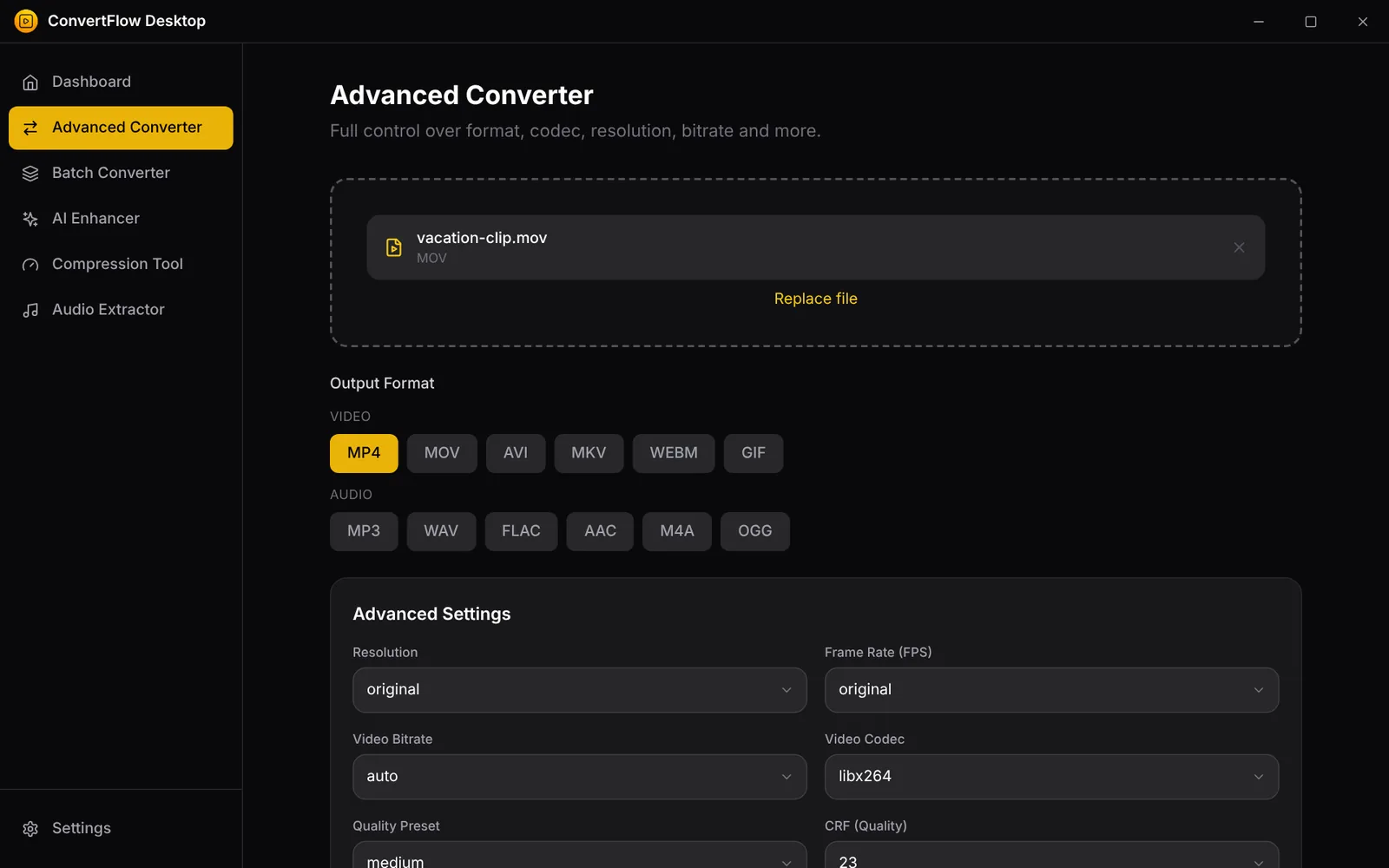
What it does well:
- One app for video, audio and images. Video outputs include MP4, MOV, AVI, MKV, WebM and GIF. Audio outputs include MP3, WAV, FLAC, AAC, M4A and OGG.
- Batch conversion. Add a whole folder, pick one output format and let the queue run.
- Compression with a preview. Presets for smallest file, balanced and best quality, and the estimated output size is shown before you start. We cover this in our guide to compressing video for email, Discord and WhatsApp.
- No size limits. Only your disk space and patience set the limit.
- Built on FFmpeg. The same engine many other converters use, with a simpler interface on top.
- Extras. An audio extractor and an enhancer for noise reduction, sharpening and upscaling.
Who should pick something else: ConvertFlow runs on Windows 10 and 11, Apple Silicon Macs and 64-bit Linux, so you will need another tool if you have an Intel Mac or a 32-bit system. It is a converter, not a video editor, and its feature list does not include DVD ripping or subtitle editing. If you want a free tool and do not mind a busier interface, HandBrake or Shutter Encoder cost nothing.
Convert, compress and extract audio on your own computer
ConvertFlow runs locally with no upload limits. $1.99 once, no subscription, and a 14-day money-back guarantee.
2. HandBrake: best free video converter
HandBrake is a free, open-source video transcoder for Windows, macOS and Linux. It has been around for years, uses FFmpeg and other well-known encoders under the hood, and outputs MP4, MKV and WebM files. It also supports hardware encoding on Intel, NVIDIA and AMD hardware, which can speed things up.
Its presets make the common jobs easy: pick a preset such as “Fast 1080p30”, choose a destination and start the encode. Behind that are detailed controls for people who want them.
Who should pick something else: HandBrake is built for video, so it is not the tool for converting images or standalone audio files. The settings screen can feel dense if you only want a quick conversion. And download it only from handbrake.fr, because the project itself warns that third-party mirrors are not official.
3. Shutter Encoder: free and powerful for editors
Shutter Encoder is a free converter made by a video editor, aimed at people who work with footage every day. It is based on FFmpeg, handles video, audio and images, and runs on Windows, macOS and Linux. It adds extras such as subtitle editing and scene-cut detection that most converters skip.
Who should pick something else: all that power comes with a lot of buttons. If you just want to turn a MOV into an MP4, the learning curve is steeper than it needs to be.
4. FFmpeg: the engine behind many of the others
FFmpeg is a free command-line tool that can convert almost any media file. HandBrake, Shutter Encoder and ConvertFlow all use FFmpeg technology. If you are comfortable in a terminal, one line does the job:
ffmpeg -i input.mov -c:v libx264 -crf 20 -c:a aac -b:a 192k output.mp4
It is also the best choice for automation, such as converting every new file in a folder with a script.
Who should pick something else: there is no window and no buttons. A typo in a command can give surprising results, and you have to know the options you need.
5. VLC: good enough if it is already installed
VLC is best known as a media player, but it also has a convert feature under Media, then Convert / Save. Add a file, pick a profile such as H.264 with MP3 in MP4, choose a destination and start.
Who should pick something else: VLC is a player first, so the options are limited and the process is clunky. It is fine for a single quick job and a poor fit for batches or careful quality control.
6. CloudConvert: best online option for one-off files
CloudConvert is a browser-based service that supports a very wide range of formats, over 200 according to its own listing. There is a free daily allowance, with paid credits or subscriptions beyond that. Check its pricing page for the current limit, because reports of the exact number differ.
Who should pick something else: your file is uploaded to a server, which matters for private footage, and large videos take a long time to upload and download. Free conversions may also be queued behind paying users. For regular or large video work, a desktop tool is faster. Our guide to free online file converters explains when online tools make sense, and are online converters safe covers the privacy side.
Which one should you choose?
- You want the simplest offline tool and do not mind paying $1.99 once: ConvertFlow.
- You want free and can handle a busy settings screen: HandBrake.
- You work with footage professionally and want every option: Shutter Encoder.
- You want to script or automate: FFmpeg.
- You have one file and VLC is already on your computer: VLC.
- You have a rare format and no desktop tool: CloudConvert.
If subscriptions are your main concern, read our comparison of video converters with no subscription.
Frequently asked questions
What is the best free video converter for Windows?
For most people it is HandBrake: it is free, open source, mature and has good presets. Shutter Encoder is a strong free alternative if you want more advanced features. Both run offline.
Is it safe to use free video converters?
Open-source tools from their official sites are generally safe. The risk is lookalike download pages and installers that bundle extra software, so always download from the project’s own website. For online converters, see our guide on whether online converters are safe.
Which video format should I convert to?
MP4 with H.264 video and AAC audio plays on almost every device, so it is the safe default. Our guide to MP4, MKV, MOV, AVI and WebM explains when another format makes sense.
Do I have to pay for a video converter?
No. HandBrake, Shutter Encoder, FFmpeg and VLC are free. Paid tools sell convenience: a simpler interface, batch tools and compression presets in one place. ConvertFlow costs $1.99 once, with a 14-day money-back guarantee.
Can I convert video online for free?
Yes, with limits. Online services usually cap the daily number of conversions and the file size, and your video has to be uploaded first. For anything large or private, a desktop converter is the better choice.
Convert, compress and extract audio on your own computer
ConvertFlow runs locally with no upload limits. $1.99 once, no subscription, and a 14-day money-back guarantee.
Facts about third-party products come from their official sites and public documentation. Features, prices and limits change, so check before you rely on them.