 ConvertFlow
How to Compress a Video for Email, Discord and WhatsApp
Quick answer
Gmail allows 25 MB of attachments per email, Discord’s free limit is 20 MB, and WhatsApp allows 16 MB for normal video messages. To hit those, lower the resolution to 720p and raise the compression (CRF) or set a target bitrate. A 2-minute clip at about 1,000 kbps video lands near 17 MB.
In this guide
You record a two-minute clip, try to send it, and get an error. Email, Discord and WhatsApp all cap how big a file can be, and phone and screen recordings are usually far over the limit.
The fix is to compress the video before sending. You can usually make a file several times smaller with little visible loss, as long as you know which settings matter.
What are the file size limits?
Limits change, so treat these as a snapshot from November 2026 and check each service if it matters.
| Service | Limit | Notes |
|---|---|---|
| Gmail | 25 MB total per email | Applies to all attachments combined. Larger files are turned into a Google Drive link. |
| Outlook and many other email providers | Around 20 to 25 MB | Varies by provider, so check yours. |
| Discord (free account) | 20 MB per file | Raised from 10 MB in August 2026. Some older guides still say 10 MB. |
| WhatsApp, normal video message | 16 MB | As a document, a file can be up to 2 GB, but it does not play inline in the chat. |
Aim a little under the limit. Email adds overhead to attachments, so a 24 MB file can still be rejected by a 25 MB limit.
What makes a video file big?
Three things decide size: resolution, bitrate and length. Bitrate is how much data is used per second of video. The file size is roughly:
Size in MB is roughly (video kbps + audio kbps) × seconds ÷ 8 ÷ 1,000
That gives you a quick way to plan. Using 128 kbps for audio:
| Video bitrate | Size per minute | Typical use |
|---|---|---|
| 500 kbps | about 4.7 MB | Small, soft 480p clips |
| 1,000 kbps | about 8.5 MB | Decent 720p for short clips |
| 2,000 kbps | about 16 MB | Sharp 720p or modest 1080p |
| 4,000 kbps | about 31 MB | High-quality 1080p |
So a 2-minute clip at 1,000 kbps comes to about 17 MB, which fits Discord’s free limit and Gmail’s. A 1-minute clip at 1,000 kbps is about 8.5 MB, which fits WhatsApp’s 16 MB cap with room to spare.
The settings that shrink video the most
- Lower the resolution. Going from 1080p to 720p removes more than half of the pixels, and on a phone screen the difference is small.
- Raise the CRF (compression level). With the common H.264 codec, CRF 23 is a typical default. Higher numbers mean smaller files and softer detail. CRF 28 is a good “smaller” setting.
- Trim the video. Cutting dead time at the start and end is free compression.
- Lower the audio bitrate. 96 to 128 kbps is plenty for speech.
- Use MP4 with H.264. It is the most compatible choice. See our guide to video formats.
Method 1: ConvertFlow’s compression tool
ConvertFlow has a compression tool built for exactly this. Open it, add your video, and pick a preset: Smallest file, Balanced or Best quality. The estimated output size is shown before you start, so you can adjust until it is under your limit. A custom mode lets you set your own CRF and audio bitrate.
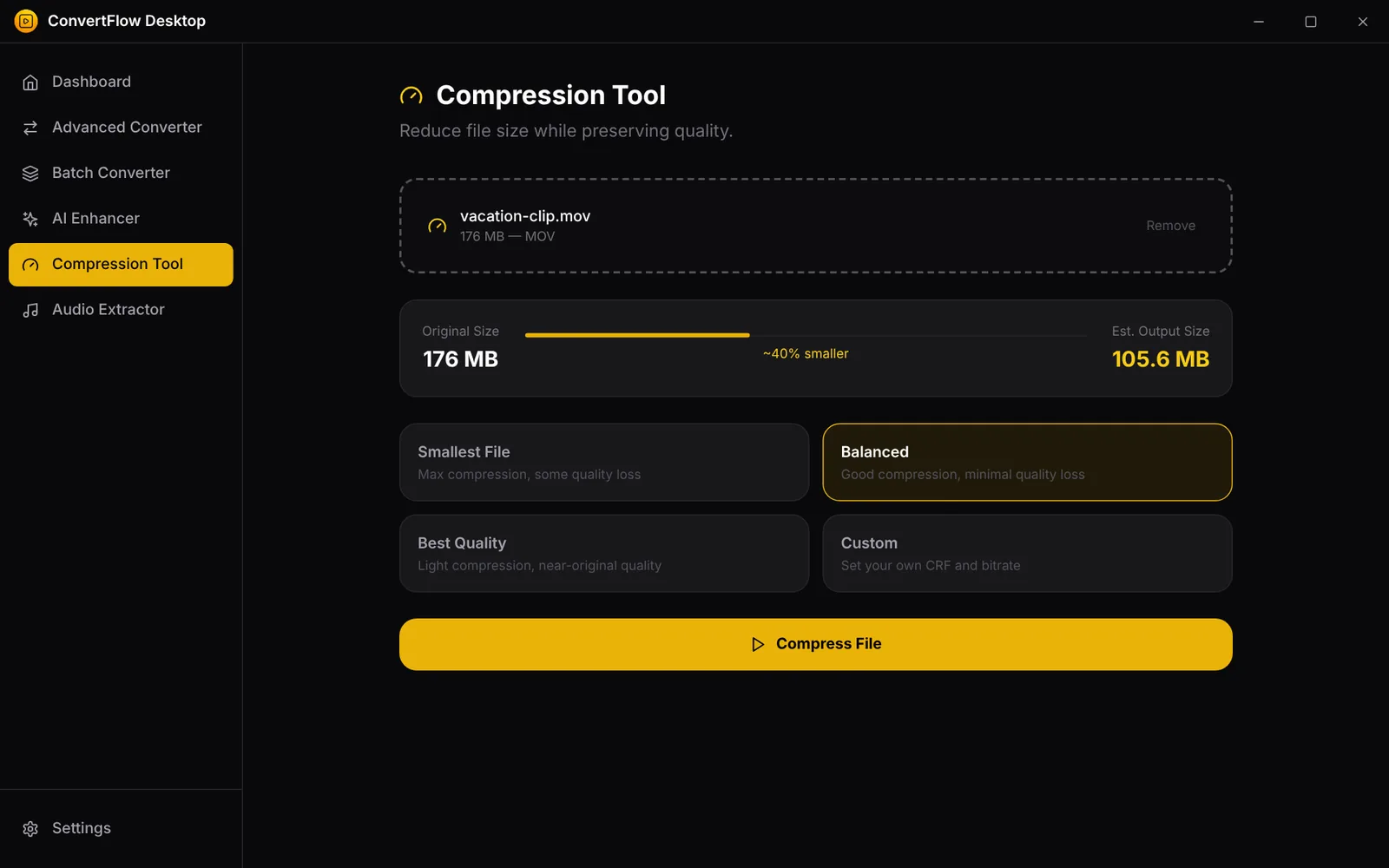
Everything runs on your computer, so a private video never leaves your computer, and there is no file size limit.
Convert, compress and extract audio on your own computer
ConvertFlow runs locally with no upload limits. $1.99 once, no subscription, and a 14-day money-back guarantee.
Method 2: HandBrake (free)
HandBrake is free and works well for this:
- Open HandBrake and drag in your video.
- Pick a preset such as “Fast 720p30”.
- On the Summary tab, set the format to MP4.
- On the Video tab, adjust the quality slider. A higher number means a smaller file.
- Choose a destination and click Start Encode.
- Check the finished file’s size. If it is still too big, raise the quality number a little and run it again.
Method 3: FFmpeg (free, command line)
If you are comfortable with a terminal, FFmpeg does it in one line:
ffmpeg -i input.mp4 -vf scale=-2:720 -c:v libx264 -crf 28 -preset medium -c:a aac -b:a 96k output.mp4
That scales to 720p, compresses with CRF 28 and sets the audio to 96 kbps. Change the CRF value up or down to trade size for quality.
Tips for each service
- Gmail: if the file is over 25 MB, Gmail will add a Google Drive link instead of an attachment. That works, but the recipient needs access to the link.
- Discord: keep free-account uploads under 20 MB. If you want a safer margin, stay near 10 MB, since some older documentation still shows the previous limit.
- WhatsApp: for inline playback, stay under 16 MB. If quality matters more than preview, attach the video as a document instead, which allows up to 2 GB.
Common mistakes
- Compressing a video twice. Each pass loses detail. Compress once from the original.
- Changing only the file extension. Renaming a file does not shrink it. You need to re-encode.
- Aiming exactly at the limit. Leave some headroom.
- Using a screen recording as-is. Screen recordings are often recorded at very high bitrates, so they shrink dramatically.
If you need to change the format first, see how to convert MOV to MP4 on Windows.
Frequently asked questions
How do I make a video under 25 MB?
Lower the resolution to 720p, use H.264 at a moderate CRF such as 26 to 28, and trim any dead time. As a guide, a clip at about 1,000 kbps video uses roughly 8.5 MB per minute.
How do I compress a video for Discord?
Free accounts can upload files up to 20 MB as of August 2026. Compress to 720p with a bitrate around 1,000 kbps and keep clips short.
How do I send a large video on WhatsApp?
Videos sent as normal messages are limited to 16 MB. To send a bigger file, attach it as a document, which allows up to 2 GB, or compress it first so it plays inline.
Does compressing a video reduce quality?
Yes, a little, because compression discards detail. At sensible settings the loss is hard to see, especially on a phone screen.
Convert, compress and extract audio on your own computer
ConvertFlow runs locally with no upload limits. $1.99 once, no subscription, and a 14-day money-back guarantee.
Facts about third-party products come from their official sites and public documentation. Features, prices and limits change, so check before you rely on them.