 ConvertFlow
How to Convert MOV to MP4 on Windows (4 Easy Methods)
Quick answer
To convert MOV to MP4 on Windows, open the file in a converter, choose MP4 as the output and start the conversion. ConvertFlow ($1.99 once) is the quickest for batches, HandBrake and VLC are free, and FFmpeg is free for command-line users. Renaming the file extension does not work reliably.
In this guide
- Why does a MOV file fail on Windows?
- Method 1: ConvertFlow (fastest for one file or a whole folder)
- Method 2: HandBrake (free)
- Method 3: VLC (free, if you already have it)
- Method 4: FFmpeg (free, command line)
- Which method should you pick?
- After converting: check three things
- Which settings matter when you convert?
- Troubleshooting common problems
- Frequently asked questions
You airdropped a video from an iPhone or copied a clip from a Mac, and now it will not open properly on your Windows PC. Or it plays with no picture, or a website refuses to accept the upload. The fix is usually to convert the MOV file to MP4.
This guide shows four ways to do it on Windows 10 and 11, from the quickest to the most technical.
Why does a MOV file fail on Windows?
MOV is Apple’s QuickTime container format. iPhones record video as MOV files, and depending on your camera settings they may use HEVC (also called H.265), a modern codec that not every Windows app can decode without an extra component. Many websites, editors and TVs also prefer MP4.
MP4 with H.264 video and AAC audio plays almost everywhere, which is why converting is the standard fix. For a deeper explanation, see our guide to MP4, MKV, MOV, AVI and WebM.
Can you just rename .mov to .mp4? Sometimes the file will play, because the two containers are similar, but it is unreliable and does not change the video inside. Convert properly instead.
Method 1: ConvertFlow (fastest for one file or a whole folder)
ConvertFlow is a desktop app for Windows, Mac and Linux that converts on your own computer for a one-time $1.99.
- Open ConvertFlow and choose Advanced Converter.
- Drag in your MOV file, or click to browse.
- Under Output Format, pick MP4.
- Leave the settings on their defaults, or adjust resolution, bitrate and codec if you want to.
- Start the conversion and wait for it to finish. The progress is shown as it runs.
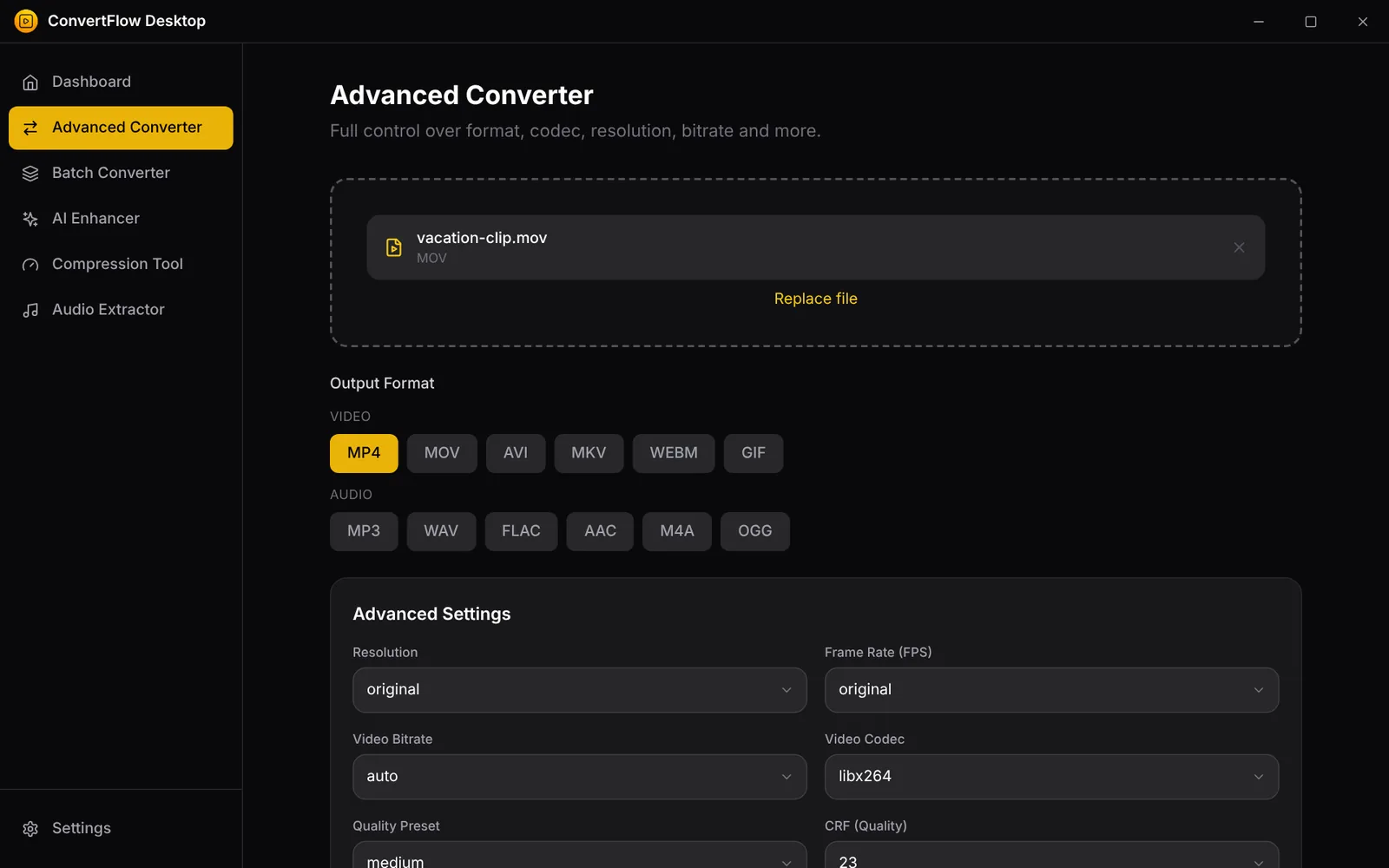
Have a folder of clips? Use the Batch Converter instead: add all the files, choose MP4 once, and it works through the queue. Files are never uploaded, and there is no size limit.
Convert, compress and extract audio on your own computer
ConvertFlow runs locally with no upload limits. $1.99 once, no subscription, and a 14-day money-back guarantee.
Method 2: HandBrake (free)
HandBrake is free and open source.
- Install HandBrake from handbrake.fr, the official site.
- Click Open Source and choose your MOV file.
- Pick a preset, for example “Fast 1080p30”.
- On the Summary tab, make sure the format is MP4.
- Click Browse to choose where the new file goes.
- Click Start Encode.
HandBrake re-encodes the video, so it takes longer than a simple container swap, but it also lets you control quality and size.
Method 3: VLC (free, if you already have it)
VLC can convert files too:
- In VLC, open Media, then Convert / Save.
- Click Add, choose your MOV file, then click Convert / Save.
- Under Profile, choose Video - H.264 + MP3 (MP4).
- Click Browse, name the destination file with a .mp4 extension and choose a folder.
- Click Start.
VLC is fine for a one-off. It gives you little control and is slower to set up for batches.
Method 4: FFmpeg (free, command line)
FFmpeg is the engine many converters use. To re-encode into widely compatible MP4:
ffmpeg -i input.mov -c:v libx264 -crf 20 -c:a aac -b:a 192k output.mp4
If the video inside is already in a format MP4 supports, you can skip re-encoding and just change the container, which is very fast and loses no quality:
ffmpeg -i input.mov -c copy output.mp4
If that command fails or the result will not play, use the first command instead.
Which method should you pick?
- Many files, or you want the least fuss: ConvertFlow.
- One file and you want free: HandBrake or VLC.
- You like the command line, or want to script it: FFmpeg.
After converting: check three things
- Does it play? Open the MP4 and scrub through it.
- Is the size reasonable? If it is too large to share, see how to compress a video for email, Discord and WhatsApp.
- Did the audio come across? Check the sound at the start and end.
Which settings matter when you convert?
Most converters work fine on their defaults, but these are the settings worth knowing.
- Codec: choose H.264 for maximum compatibility. ConvertFlow’s Advanced Converter shows libx264 by default.
- Quality (CRF): lower numbers mean better quality and bigger files. CRF 18 to 23 is a good range, and 23 is a common default.
- Preset: slower presets take longer but produce smaller files at the same quality. “Medium” is a balanced starting point.
- Resolution and frame rate: leave both on “original” unless you need a smaller file.
- Hardware acceleration: on supported graphics cards it can speed conversion up a lot. ConvertFlow uses it when it is available.
Troubleshooting common problems
The MP4 has no sound. Check that the audio is set to AAC. In HandBrake, look at the Audio tab, and in VLC pick a profile that includes audio.
The video looks blurry or blocky. The quality is set too low. Lower the CRF value (for example from 28 to 20) or raise the bitrate.
The MP4 is bigger than the original MOV. This happens when the MOV used HEVC, which is very efficient, and you re-encode to H.264, which needs more data for the same quality. Raise the CRF slightly, or use FFmpeg’s copy option if the codecs already fit in MP4.
The audio drifts out of sync. Phone videos often use a variable frame rate, which some tools handle badly. Set a fixed frame rate such as 30 fps in the converter’s frame rate option.
The conversion fails on a large file. Make sure you have plenty of free disk space, since the output can be big, and close other heavy programs.
Frequently asked questions
How do I convert MOV to MP4 on Windows for free?
Use HandBrake or VLC. Both are free: open the MOV file, choose MP4 as the output format and start the conversion.
Does converting MOV to MP4 lose quality?
Re-encoding always loses a tiny amount of detail, but at sensible settings, such as H.264 at CRF 20, it is hard to notice. A container-only change with FFmpeg’s copy option loses nothing.
Why does my iPhone video not play on Windows?
iPhone videos are MOV files, and they may use HEVC video that Windows cannot always decode without an extra codec. Converting to MP4 with H.264 avoids the problem.
Can I convert many MOV files at once?
Yes. ConvertFlow’s Batch Converter handles a whole folder in one go. HandBrake can queue multiple files as well.
Can I convert MOV to MP4 online?
You can, but your video has to be uploaded, and large files are slow. For private or large clips, a desktop tool is the better choice. See our guide to free online file converters.
Convert, compress and extract audio on your own computer
ConvertFlow runs locally with no upload limits. $1.99 once, no subscription, and a 14-day money-back guarantee.
Facts about third-party products come from their official sites and public documentation. Features, prices and limits change, so check before you rely on them.