 ConvertFlow
How to Convert WebP to JPG or PNG (Free, No Upload)
Quick answer
To convert WebP to JPG or PNG, use a converter that runs in your browser, like ConvertFlow’s free WebP to JPG and WebP to PNG tools: drop the file, choose the format and download. Pick JPG for photos and PNG if you need transparency. For whole folders, use a batch converter.
In this guide
- What is a WebP file?
- Should you convert to JPG or PNG?
- Method 1: free browser converter (no upload)
- Method 2: convert a whole folder on Windows
- Method 3: ask the website for a different format
- Why not use any online converter?
- How to open a WebP file without converting it
- Which JPG quality and size should you choose?
- Things that can go wrong
- Frequently asked questions
You save an image from a website, and it turns out to be a WebP file. Then your photo editor will not open it, a form rejects the upload, or the person you send it to cannot view it. Converting it to JPG or PNG solves all three.
Here is what WebP is, which format to pick, and how to convert in a few seconds without uploading anything.
What is a WebP file?
WebP is an image format developed by Google for the web. It can store photos with lossy compression, graphics with lossless compression, transparency and even animation, and it usually produces smaller files than JPG or PNG at similar quality. That is why many websites serve images as WebP: smaller images load faster.
The catch is compatibility. Modern browsers handle WebP without trouble, but many apps, print services, older software and upload forms still expect JPG or PNG.
Should you convert to JPG or PNG?
| JPG | PNG | |
|---|---|---|
| Best for | Photos | Logos, screenshots, graphics with sharp edges |
| Transparency | No | Yes |
| File size | Smaller | Larger |
| Quality | Lossy, so some detail is discarded | Lossless |
Choose JPG for a photo you want to email or upload. Choose PNG if the image has a transparent background or sharp text you want to keep crisp. Converting a transparent WebP to JPG replaces the transparent area with a solid color.
Method 1: free browser converter (no upload)
ConvertFlow has free converters that run entirely in your browser, so your image is processed on your own device and never uploaded. There is no sign-up and no watermark.
- Open WebP to JPG or WebP to PNG.
- Drag your WebP file onto the page, or click to choose it.
- Check the Convert to format. For JPG you can also adjust the quality slider, and you can set a maximum width to shrink big images.
- Click Convert file and download the result.
The free tool handles images up to 25 MB, and you get 3 free conversions per week. That is plenty for the occasional image.
Need a quick image or audio conversion?
Use the free browser converter. Nothing is uploaded, and there is no sign-up. Free: 3 conversions per week.
You can also go the other way. If you want smaller files for a website, try JPG to WebP or PNG to WebP.
Method 2: convert a whole folder on Windows
If you have dozens of WebP files, converting one at a time is tedious. ConvertFlow includes a Batch Converter for this: add all the images, choose one output format such as JPG or PNG, and let it work through the queue. It supports PNG, JPG, WebP, BMP, TIFF and ICO outputs, runs on your computer, has no file size limits, and costs $1.99 once.
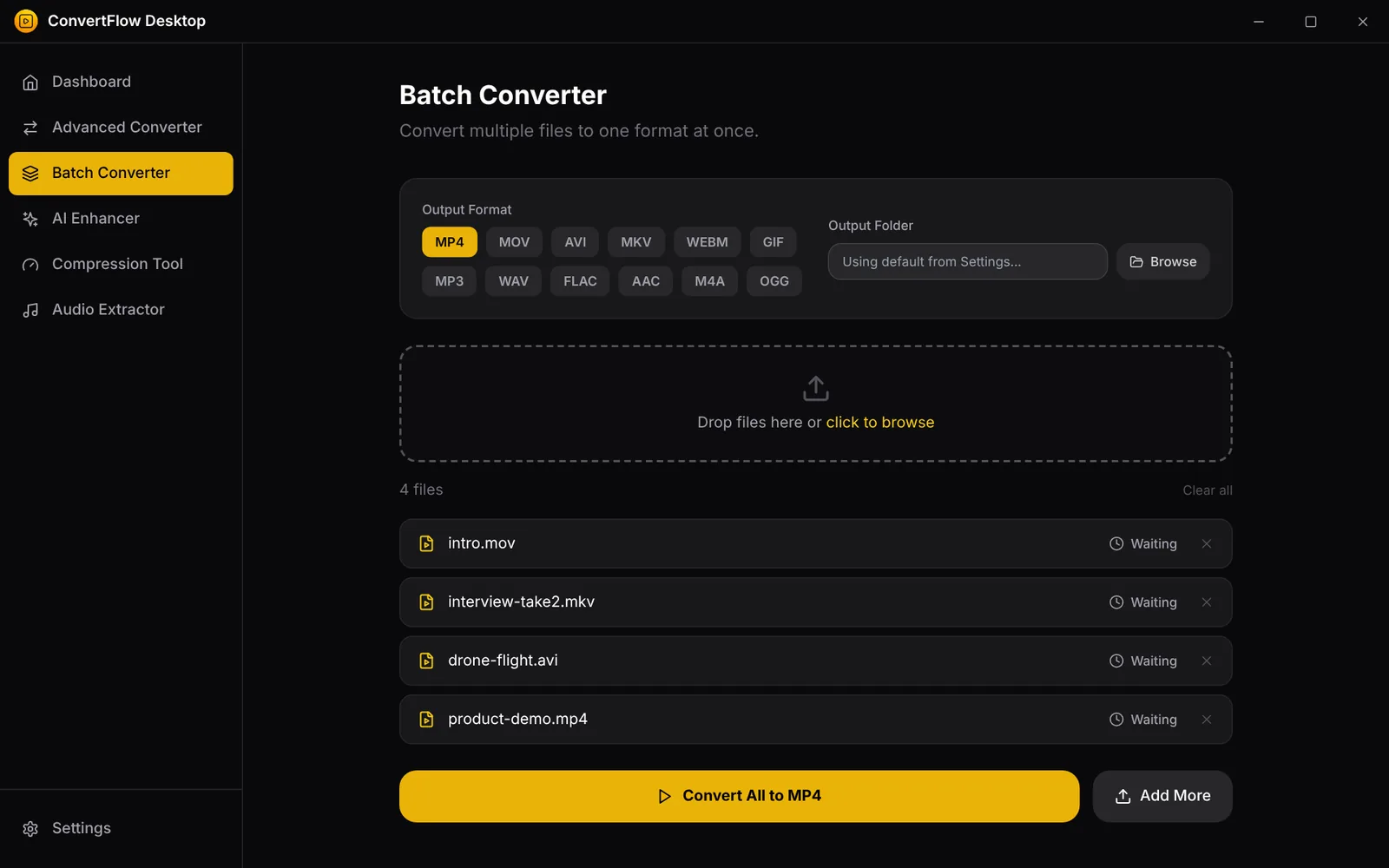
Convert, compress and extract audio on your own computer
ConvertFlow runs locally with no upload limits. $1.99 once, no subscription, and a 14-day money-back guarantee.
Method 3: ask the website for a different format
Sometimes the original image is also available as JPG or PNG. Look for a download button, or open the image in a new tab and check the address. If it ends in .webp, converting is usually faster than hunting for another version.
Why not use any online converter?
Plenty of sites will convert WebP, but many upload your image to a server first. For a photo of a receipt, an ID or anything private, that is not ideal. A converter that runs in your browser avoids the issue. We explain how to tell the difference in our guide to whether online converters are safe, and we compare the options in free online file converters.
How to open a WebP file without converting it
If you only need to look at the image, you often do not have to convert it. Drag the file into a browser such as Chrome, Edge or Firefox and it will display. Recent versions of Windows can also open WebP in their built-in viewers, but older versions and many apps cannot, which is when converting helps.
Which JPG quality and size should you choose?
The free converter lets you set a quality level and a maximum width. These are sensible starting points:
| Goal | Quality | Max width |
|---|---|---|
| Photo you want to keep looking great | 90% | Original size |
| Email or website upload | 80% | 1920 px |
| Small file for a forum, chat or thumbnail | 70% | 800 to 1280 px |
Lower quality and smaller width both reduce file size, so if a form says the file is too big, adjust those before anything else.
Things that can go wrong
- Transparency disappears. JPG cannot store transparency, so a see-through background becomes a solid color. Convert to PNG to keep it.
- Animated WebP becomes a still image. JPG and PNG are still-image formats, so the animation is lost.
- The file is over 25 MB. The free tool’s limit is 25 MB per image. The desktop app has no size limit.
- It is actually a HEIC photo. iPhone photos are often HEIC, which is a different format. The free tool does not convert HEIC.
Frequently asked questions
How do I convert WebP to JPG for free?
Open a free converter such as ConvertFlow’s WebP to JPG tool, drop in your file, choose JPG and download it. It runs in your browser and does not upload your image.
Does converting WebP to JPG reduce quality?
JPG is a lossy format, so a small amount of detail is discarded. At a high quality setting the difference is very hard to see. If you want no loss, convert to PNG instead.
Can I convert WebP to PNG with a transparent background?
Yes. PNG supports transparency, so a transparent WebP keeps its see-through areas when converted to PNG. JPG does not support transparency.
Why do websites use WebP?
WebP files are usually smaller than JPG or PNG at similar quality, which makes pages load faster.
Can I convert many WebP files at once?
Yes. ConvertFlow’s Batch Converter converts a whole folder in one go. The free browser tool handles one file at a time, up to 3 per week.
Convert, compress and extract audio on your own computer
ConvertFlow runs locally with no upload limits. $1.99 once, no subscription, and a 14-day money-back guarantee.
Facts about third-party products come from their official sites and public documentation. Features, prices and limits change, so check before you rely on them.