 ConvertFlow
How to Extract Audio From a Video (MP4 to MP3) on Windows
Quick answer
To extract audio from a video on Windows, open it in an audio extractor, choose MP3 (or WAV or FLAC), pick a bitrate such as 192 kbps and save. ConvertFlow’s Audio Extractor does it in a few clicks, VLC and FFmpeg are free alternatives. Only extract audio you have the right to use.
In this guide
- What format should you save the audio as?
- Which bitrate should you choose?
- Method 1: ConvertFlow’s Audio Extractor
- Method 2: VLC (free)
- Method 3: FFmpeg (free, command line)
- What about online converters?
- Tips for better results
- Extract only part of the audio
- Extract audio from a whole folder of videos
- Common problems
- Good uses for extracted audio
- Frequently asked questions
Sometimes you only want the sound. A lecture you would rather listen to on a walk, an interview for a podcast edit, a music clip, or a voice recording from a screen capture. Extracting the audio from a video gives you a much smaller file you can play anywhere.
This guide shows three ways to do it on Windows, and how to choose the right format and quality.
A quick note on rights: only extract audio from videos you own, made yourself, or have permission to use. Pulling the soundtrack from other people’s work may break copyright or a service’s terms.
What format should you save the audio as?
| Format | Best for | Size per minute |
|---|---|---|
| MP3 | Everyday listening, sharing, compatibility | About 1.4 MB at 192 kbps |
| WAV | Editing, since it is uncompressed | About 10.6 MB at CD quality |
| FLAC | Keeping full quality in a smaller file than WAV | Roughly half of WAV |
If you are not sure, choose MP3. For an explanation of the differences, read WAV vs MP3 vs FLAC.
Which bitrate should you choose?
Bitrate controls the quality and size of an MP3.
- 96 to 128 kbps: fine for speech such as lectures and interviews
- 192 kbps: a good all-round choice for music and mixed audio
- 256 to 320 kbps: the highest MP3 quality, for music you care about
Remember that extracting audio cannot add quality that was never there. If the video’s sound was low quality, a high bitrate will not fix it.
Method 1: ConvertFlow’s Audio Extractor
ConvertFlow includes an Audio Extractor made for this job, and it works with any video format the app can open.
- Open ConvertFlow and choose Audio Extractor.
- Add your video file.
- Choose the format: MP3, WAV or FLAC.
- Pick the bitrate that suits you.
- Start the extraction and save the audio file.
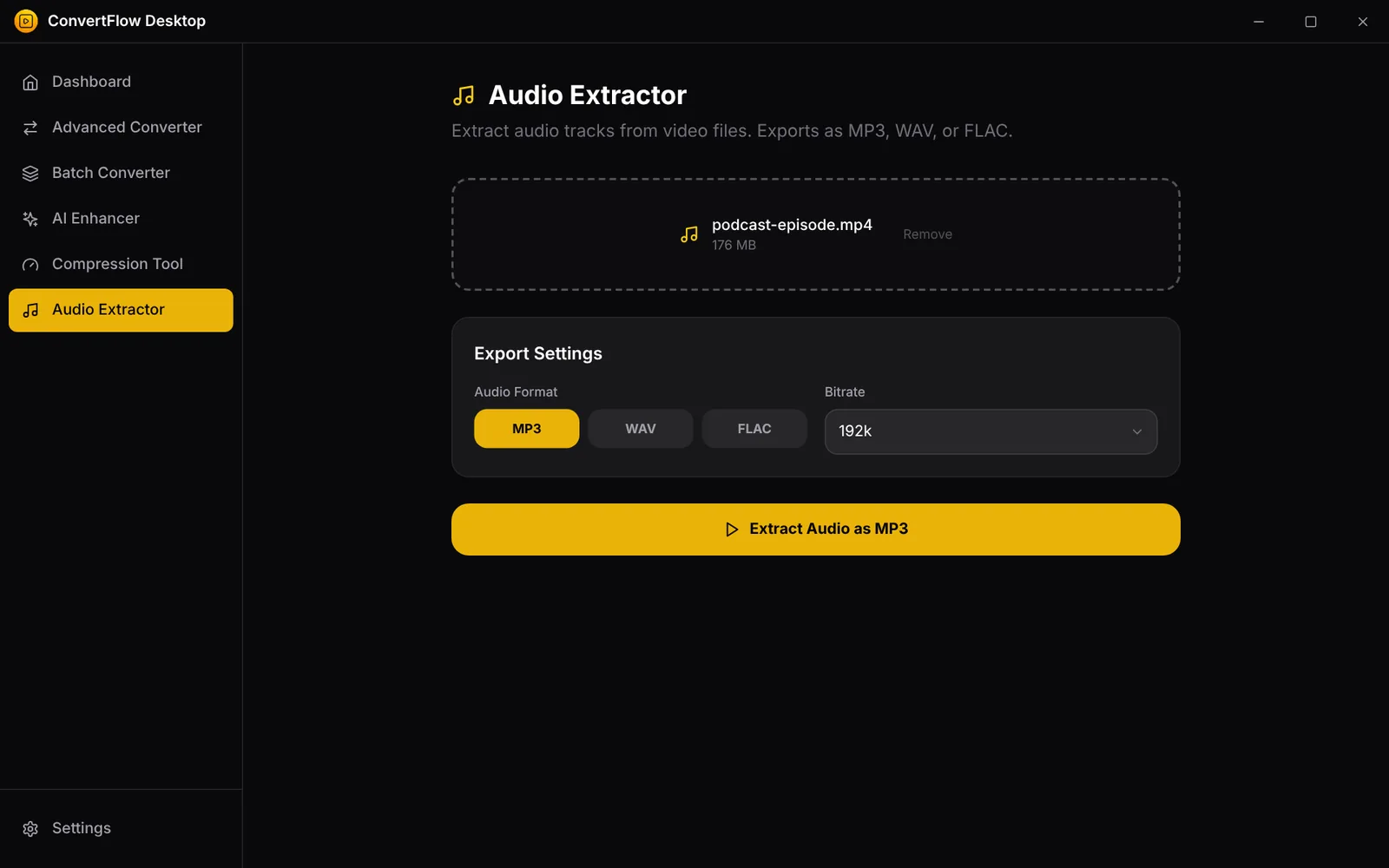
It runs entirely on your computer, so a private recording never goes online, and there are no file size limits. That matters for long lectures and recordings, which are the files people most often want audio from.
Convert, compress and extract audio on your own computer
ConvertFlow runs locally with no upload limits. $1.99 once, no subscription, and a 14-day money-back guarantee.
Method 2: VLC (free)
If VLC is already installed, you can use it:
- Open Media, then Convert / Save.
- Click Add, choose your video, then click Convert / Save.
- Under Profile, choose Audio - MP3.
- Click Browse, name the file with a .mp3 extension and pick a folder.
- Click Start.
It is a fine one-off method. You get little control over the bitrate compared with a dedicated tool.
Method 3: FFmpeg (free, command line)
With FFmpeg, one command pulls the audio out and saves it as a 192 kbps MP3:
ffmpeg -i input.mp4 -vn -c:a libmp3lame -b:a 192k output.mp3
The -vn part means “no video”. To save as FLAC instead, use:
ffmpeg -i input.mp4 -vn -c:a flac output.flac
What about online converters?
Many sites offer MP4 to MP3 conversion, but you have to upload the whole video first, which is slow for large files and means your footage leaves your computer. ConvertFlow’s free browser converter can convert audio files such as M4A to MP3 or FLAC to MP3 without uploading anything, but it does not handle video. For video, use a desktop tool. See our guide to online converter safety.
Need a quick image or audio conversion?
Use the free browser converter. Nothing is uploaded, and there is no sign-up. Free: 3 conversions per week.
Tips for better results
- Trim first if you only need part of it. A shorter file is smaller and quicker to process.
- Keep the original video. You may want a different bitrate later.
- Use WAV or FLAC if you plan to edit. Converting an MP3 again loses a little more quality each time.
- Check the result. Play the start, the middle and the end.
Extract only part of the audio
If you want just a section, such as one speaker or one song, FFmpeg can cut it as it extracts. This takes the audio from 1 minute to 3 minutes 30 seconds:
ffmpeg -i input.mp4 -ss 00:01:00 -to 00:03:30 -vn -c:a libmp3lame -b:a 192k clip.mp3
Extract audio from a whole folder of videos
On Windows you can run FFmpeg over every MP4 in a folder with PowerShell. Open PowerShell in the folder and run:
Get-ChildItem *.mp4 | ForEach-Object { ffmpeg -i $_.FullName -vn -c:a libmp3lame -b:a 192k ($_.BaseName + ".mp3") }
Each video produces an MP3 with the same name.
Common problems
- The file has no sound. Some screen recordings are saved without an audio track, so there is nothing to extract. Play the video first to check.
- The audio is very quiet. Extraction copies the volume as it was. Raise it afterwards in an audio editor.
- It picked the wrong language. Videos with several audio tracks, common in MKV files, may default to the first one. With FFmpeg you can choose the second audio track by adding
-map 0:a:1before the output name. - The result sounds worse than expected. Check the original. Extracting cannot improve a poor recording, and re-saving an already compressed track as MP3 loses a little more.
Good uses for extracted audio
Listening to a recorded lecture on a walk, turning a screen-recorded talk into a podcast-style file, keeping the sound of a family video, or sending someone only the audio of a meeting. In each case the audio file is usually a tenth the size of the video, so it is easier to store and share.
Frequently asked questions
How do I extract audio from a video for free?
Use VLC’s Convert / Save feature with the Audio - MP3 profile, or FFmpeg with the command shown above. Both are free.
Can I convert MP4 to MP3 without losing quality?
MP3 is a compressed format, so some detail is discarded. At 192 kbps or higher the difference is hard to hear for most listening. For no loss at all, save as WAV or FLAC.
What bitrate should I use for speech?
96 to 128 kbps is usually plenty for lectures, interviews and podcasts, and it keeps files small.
Can I extract audio from any video format?
Most tools handle common formats such as MP4, MOV, MKV, AVI and WebM. ConvertFlow’s Audio Extractor works with any video format the app can open.
Is it legal to extract audio from a video?
It depends on whose video it is. It is fine for your own recordings and for content you have permission to use. Do not extract and redistribute copyrighted material without the right to do so.
Convert, compress and extract audio on your own computer
ConvertFlow runs locally with no upload limits. $1.99 once, no subscription, and a 14-day money-back guarantee.
Facts about third-party products come from their official sites and public documentation. Features, prices and limits change, so check before you rely on them.